The Short Answer
WiFi interference between apartments is almost never a weak-signal problem — it’s a congestion problem. Your building has dozens of networks crammed onto the same handful of channels, and concrete walls scatter every one of them into your unit. The fix, in order of impact:
- Move everything you can to 5 GHz or 6 GHz. Fewer neighbours are there, and the shorter range is an advantage in a dense building.
- Set channels manually — 1, 6, or 11 on 2.4 GHz; a DFS channel (52–140) on 5 GHz. Never leave the radio on “Auto” in an apartment.
- Lower transmit power so your signal — and your neighbours’ — doesn’t bleed across units and collide.
- If you manage the whole building, use more access points at lower power on a planned channel map instead of a few blasting routers.
The rest of this guide is the why and the exact numbers.
Why Apartment WiFi Interference Is a Different Problem
In a detached house, your router competes with almost nothing. In an apartment building, three things stack up at once:
- Density. Twenty, forty, sometimes a hundred networks are within radio range — above you, below you, and on both sides. WiFi is a shared medium: only one device on a given channel can transmit at a time, so every network in range is standing in the same queue as yours.
- The 2.4 GHz ceiling. The 2.4 GHz band has only three non-overlapping channels (1, 6, 11). Once four networks want to use it, someone is overlapping someone. Add microwaves, Bluetooth, baby monitors and cheap IoT plugs, and 2.4 GHz in a building is effectively a single crowded lane.
- Concrete. Reinforced-concrete floors and walls don’t just block signal — they reflect it. A signal that would die in open air bounces down a stairwell or a light well and lands two floors away, so you hear networks you’d never expect to, and they hear you.
The tell-tale symptom: full signal bars, slow speeds, worst in the evening. That’s not weak signal. That’s co-channel contention — your devices waiting for airtime.
Diagnose Before You Change Anything
Spend five minutes measuring so you’re not guessing:
- Scan the channels. A free WiFi analyser app (on Android or a laptop) shows every network near you and the channel it’s on. You’ll usually see a pile-up on 2.4 GHz channels 1, 6 and 11, and clusters on the low 5 GHz channels (36–48) that most routers default to.
- Find the gap. Note which of 1 / 6 / 11 has the fewest and weakest networks — that’s your 2.4 GHz target. On 5 GHz, look at the high/DFS channels: they’re usually near-empty.
- Check the evening. Congestion is a rush-hour problem. A channel that looks clear at 11am can be jammed at 9pm, so scan when it’s bad.
Fix 1 — Set Channels Manually (The Exact Plan)
“Auto” channel selection re-scans occasionally and often lands everyone on the same defaults. Set them by hand:
| Band | Use these channels | Channel width | Notes |
|---|---|---|---|
| 2.4 GHz | 1, 6, or 11 only | 20 MHz | Never 40 MHz here — it overlaps two of the three channels and makes congestion worse. |
| 5 GHz (low) | 36–48 | 40 MHz | Crowded — most consumer routers default here. Use only if DFS is unavailable. |
| 5 GHz (DFS) | 52–140 | 40–80 MHz | The empty band. Most consumer gear avoids DFS, so few neighbours are here. |
| 6 GHz (WiFi 6E/7) | any (e.g. 37/53/69…) | 80–160 MHz | Effectively empty today. The single biggest available fix if your hardware supports it. |
Two rules that matter more than the exact channel:
- Narrower is calmer. A wide 80/160 MHz channel is faster in a lab and a disaster in a crowded building — it overlaps more neighbours. In an apartment, 20 MHz on 2.4 GHz and 40 MHz on 5 GHz usually deliver higher real throughput than the wide settings, because you spend less time colliding.
- Match the channel to the band’s job. Let 2.4 GHz carry only IoT and far-room devices; push phones, laptops and TVs to 5/6 GHz.
Fix 2 — Turn the Power Down, Not Up
The instinct is to crank transmit power. In a building it backfires: a louder signal reaches further into your neighbours’ units, so you collide with more of them and they collide with more of you. Everyone turns theirs up in response, and the whole building’s noise floor rises.
The professional approach is the opposite — lower power, tighter cells:
| Setup | What happens |
|---|---|
| One high-power router, max transmit | Signal bleeds across floors, collides with neighbours, dead spots behind concrete |
| Two–three access points at reduced power | Each covers a defined area, less bleed into other units, devices roam to the nearest |
Lower power means your signal stops at your walls — which is exactly what you want when the enemy is your neighbour’s radio.
Fix 3 — Move Clients Off 2.4 GHz Deliberately
Most devices cling to 2.4 GHz because it reaches further, even when a clean 5 GHz signal is available. Force the issue:
- Enable band steering on an access point that supports it, so dual-band devices are nudged to 5/6 GHz automatically.
- If you can’t steer, give 2.4 GHz and 5 GHz separate SSID names and connect your important devices to the 5 GHz one by hand.
- Retire 2.4 GHz-only gear where you can, or isolate it so it isn’t dragging your main devices onto the crowded band.
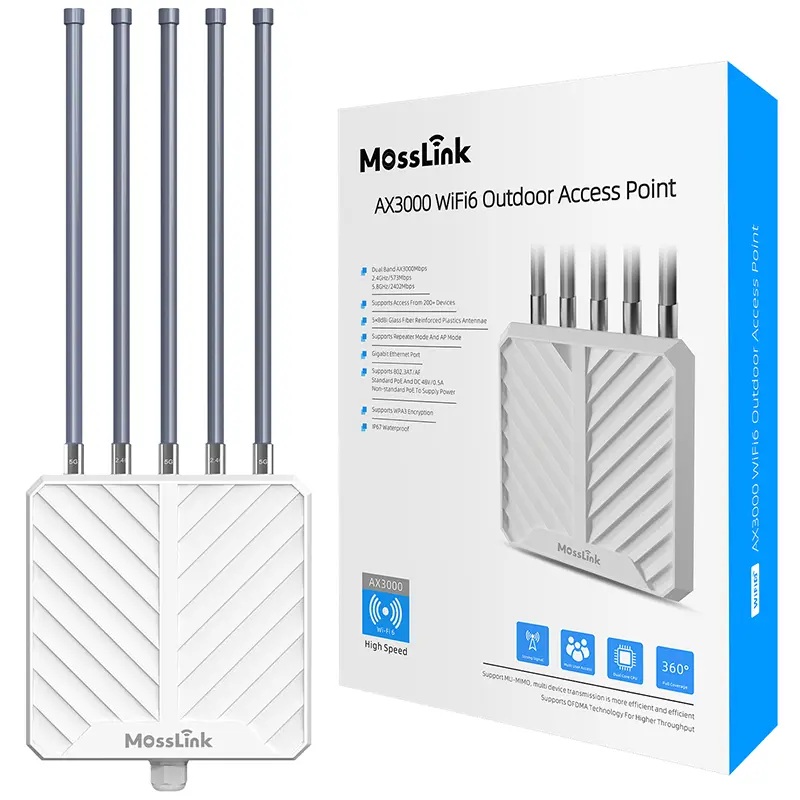
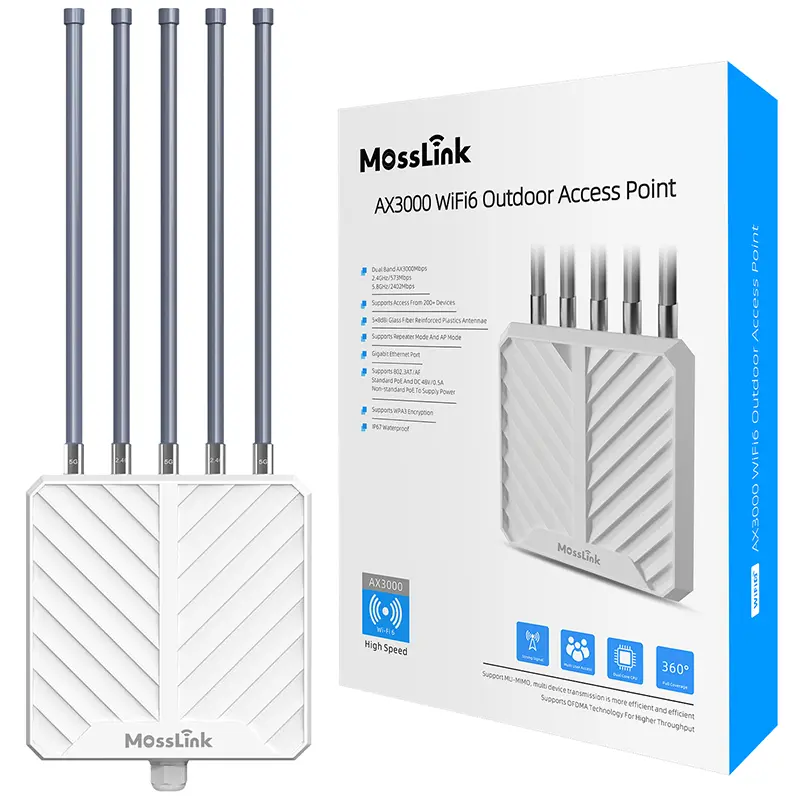
A modern access point like the MossLink APM6-AX3000 handles band steering and clean 5 GHz channel use out of the box; a WiFi 6E/7 model such as the APH6-AX3000 adds the empty 6 GHz band that sidesteps the congestion entirely.
Fix 4 — When It’s the Whole Building, Plan It as One Network
Everything above helps a single unit. But if you own or manage the building, the real solution isn’t forty tenants each fighting the channel map — it’s one designed network where the channels, power, and access points are planned together so no two adjacent cells collide, and each tenant is isolated on their own VLAN.
That’s a different project: a coordinated channel plan across floors, access points sized to the layout, and per-unit isolation so one tenant’s traffic never touches another’s. We cover the equipment and design in the Managed WiFi for Apartment Buildings guide, the isolation approach in the Multi-SSID VLAN guide, and the full deployment on the MDU / apartment solutions page.
The Bottom Line
Apartment WiFi interference is a traffic-jam problem, not a signal problem. You don’t beat it by shouting louder — you beat it by getting off the crowded lanes: move to 5/6 GHz, set 1/6/11 and DFS channels by hand, keep channel width narrow, and turn power down so your signal stays in your own walls. For a single flat that’s a ten-minute settings change. For a whole building, it’s a planned network — and that’s where a coordinated access-point deployment earns its keep.
Featured in this guide
Frequently Asked Questions
Practical answers for planning a similar network.
What is the best WiFi channel in an apartment building?
Why is my apartment WiFi so slow even with a strong signal?
Can my neighbour's WiFi slow down mine?
Does a WiFi extender help with apartment interference?
Should I use 2.4 GHz or 5 GHz in an apartment?
Deploy with confidence
See how MossLink builds Campus Wi-Fi Network Solution & Access Points end-to-end
Network architecture, products used, and real-world results in one place.
Tags
Share