Pre-Configured WiFi for Overseas Deployment: Ship It Ready to Plug In
A retail client in Central Asia was opening a multi-building commercial complex — a 3-story office building with a ground-floor café, a large retail store (54×18m), and a 1,600 sqm warehouse. They needed enterprise WiFi covering the entire property, with separate networks for staff, guests, and IoT devices.
The constraint: their local team had no networking experience. They needed a system they could physically install by following a diagram — zero configuration on-site.
Our job was to fully pre-configure every device at our Shenzhen facility, label everything, and ship it ready to deploy.
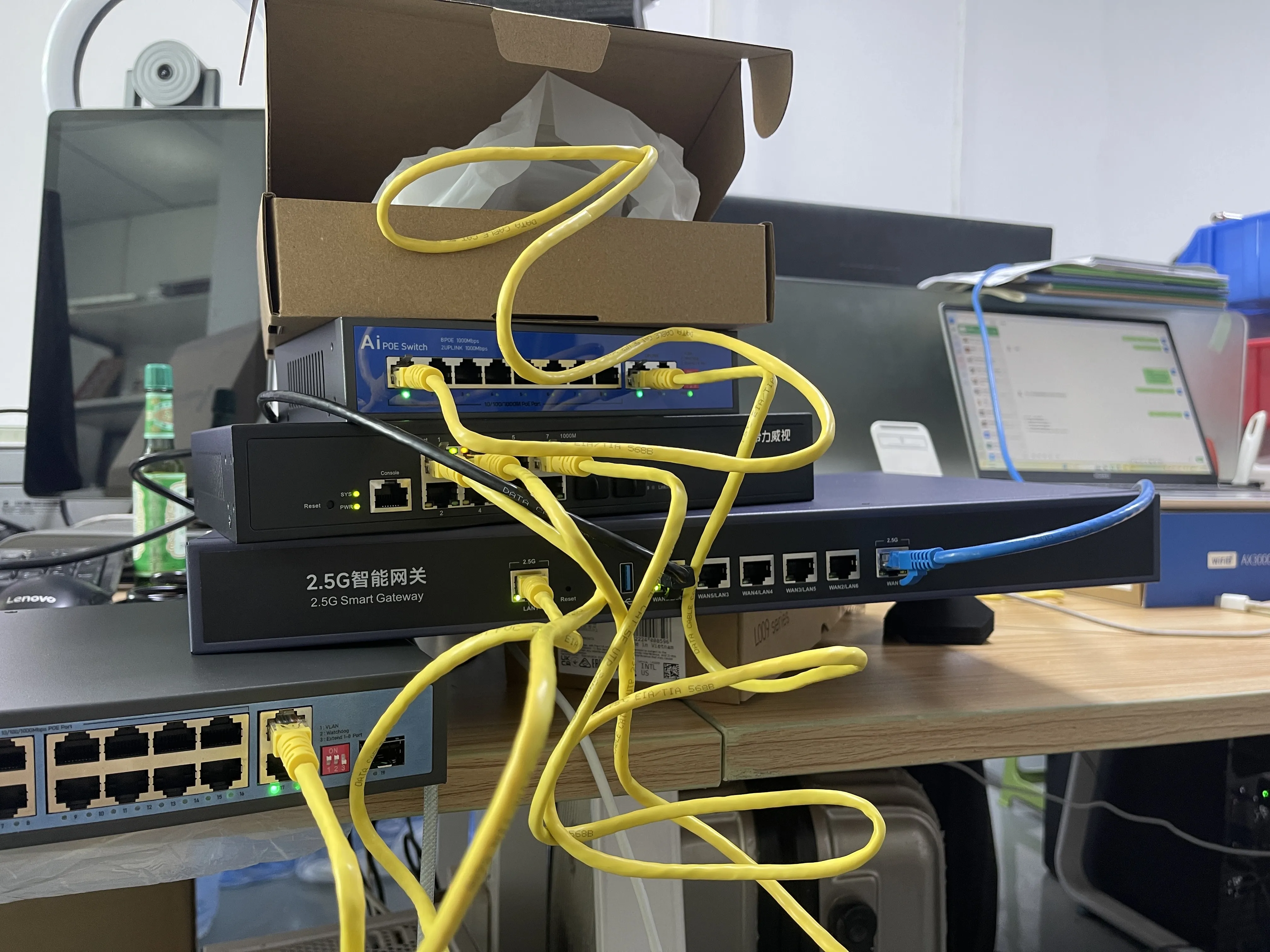
Equipment List
| Device | Model | Qty | Role |
|---|---|---|---|
| Intelligent Gateway (AC + DHCP + Router) | ZW500 | 1 | Core controller — manages all APs, runs DHCP, handles VLAN routing |
| 8-Port L3 Managed Switch | — | 1 | Core switch — VLAN trunk to all zone switches |
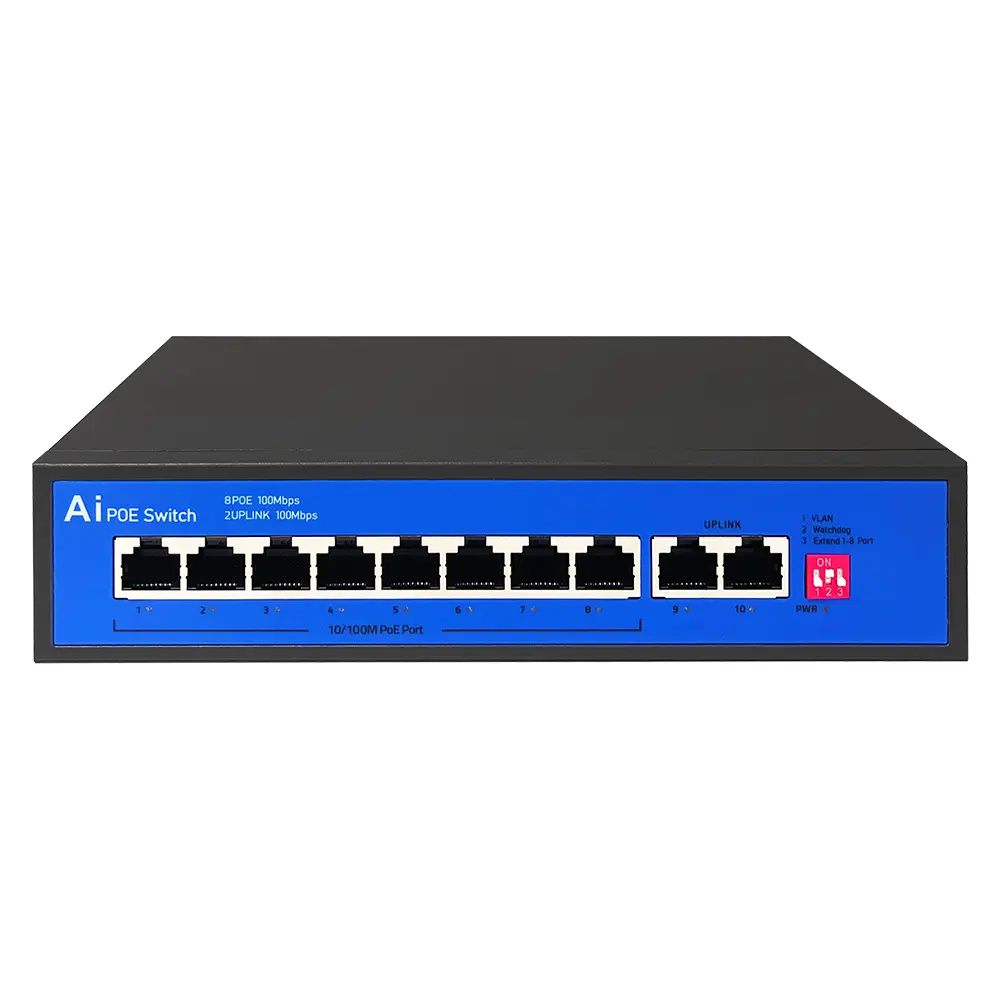
| 16-Port Gigabit PoE Switch (unmanaged) | S1621G | 2 | Office APs (×9) and Store APs (×10) |
| 8-Port Gigabit PoE Switch (unmanaged) | S802G | 3 | Warehouse APs (×3), CCTV, Tag/PA |
| WiFi 6 Ceiling AP (AX3000) | XD3001K | 23 | Dual-band, PoE-powered, AC-managed |
Total: 30 devices — configured, labeled, and shipped as a single kit.
Network Architecture
The Key Decision: Unmanaged PoE Switches
The five PoE switches are all unmanaged — no web interface, no configuration. This is a deliberate choice for cost-effective deployments, and it works for WiFi VLAN separation because:
- APs handle 802.1Q VLAN tagging themselves — each SSID maps to a VLAN ID
- Unmanaged switches pass tagged frames transparently (they forward based on MAC address, not VLAN tags)
- The gateway creates VLAN sub-interfaces with independent DHCP pools per VLAN
- Traffic isolation happens at the wireless level (AP) and the routing level (gateway), not at the switch level
The trade-off: wired devices (POS terminals, printers) all share the default management VLAN. True port-level wired isolation requires managed switches — unnecessary for this project since wired devices are all trusted internal equipment.
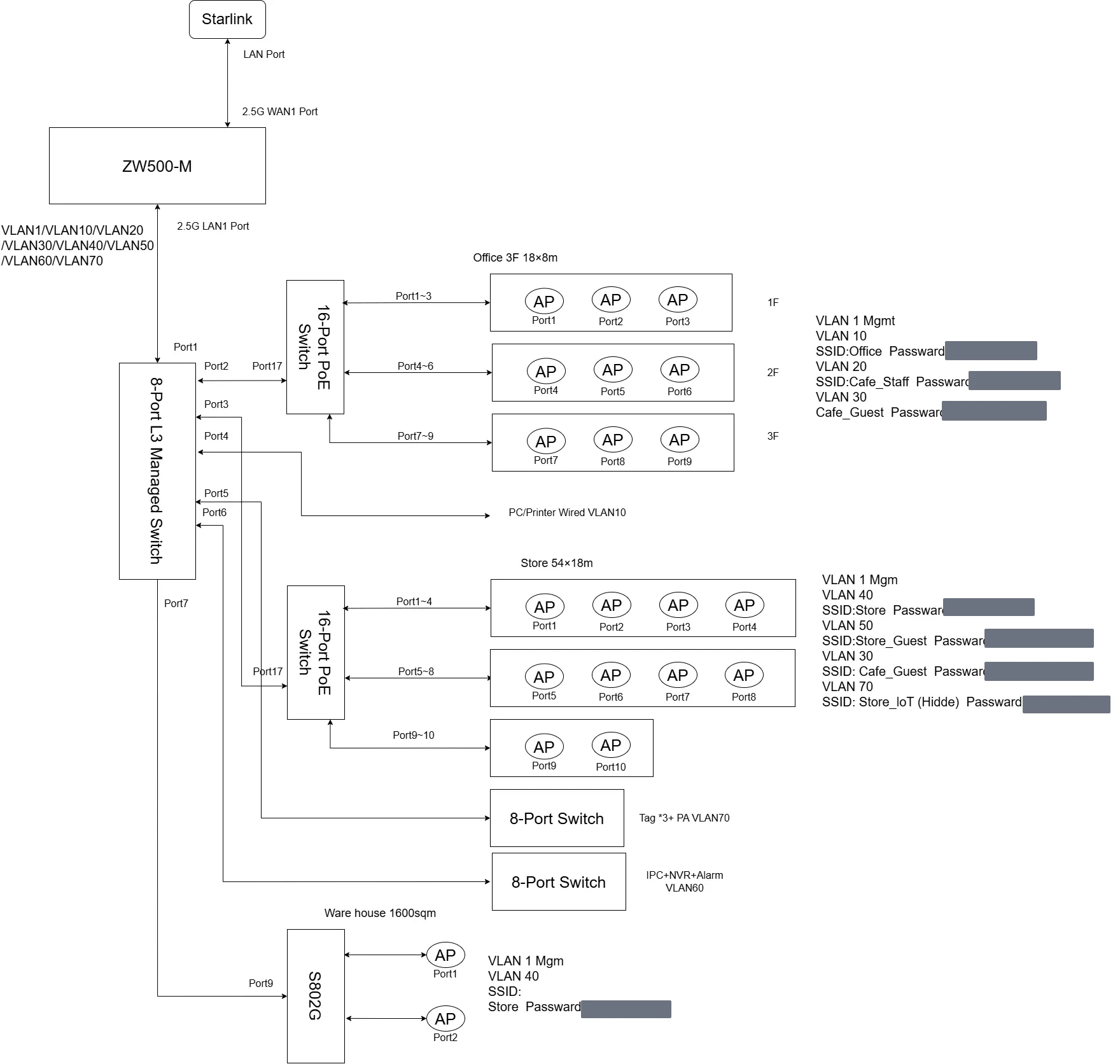
Physical Topology
Starlink (Rooftop)
    │
    ▼ WAN1 (2.5G)
┌──────────────────┐
│    Gateway        │  AC Controller + DHCP + Router
│    192.168.20.1   │
└────────┬─────────┘
         │ LAN1 (Trunk — all VLANs)
         ▼
┌──────────────────┐
│  Core Switch     │  8-Port L3 Managed
│  192.168.20.2    │
└─┬──┬──┬──┬──┬───┘
  │  │  │  │  │
  │  │  │  │  └─ Port 6 → "CCTV" switch (cameras + NVR + alarm)
  │  │  │  └──── Port 5 → "Tag/PA" switch (tag readers + PA)
  │  │  └─────── Port 4 → "Warehouse" 8-port PoE (3 APs)
  │  └────────── Port 3 → "Store" 16-port PoE (10 APs) [outdoor Cat6 ~30m]
  └───────────── Port 2 → "Office" 16-port PoE (9 APs)
Each zone has its own dedicated switch. If the store WiFi drops, you check the Store switch. If a camera goes down, you check the CCTV switch. Physical separation simplifies troubleshooting.
VLAN & WiFi Design
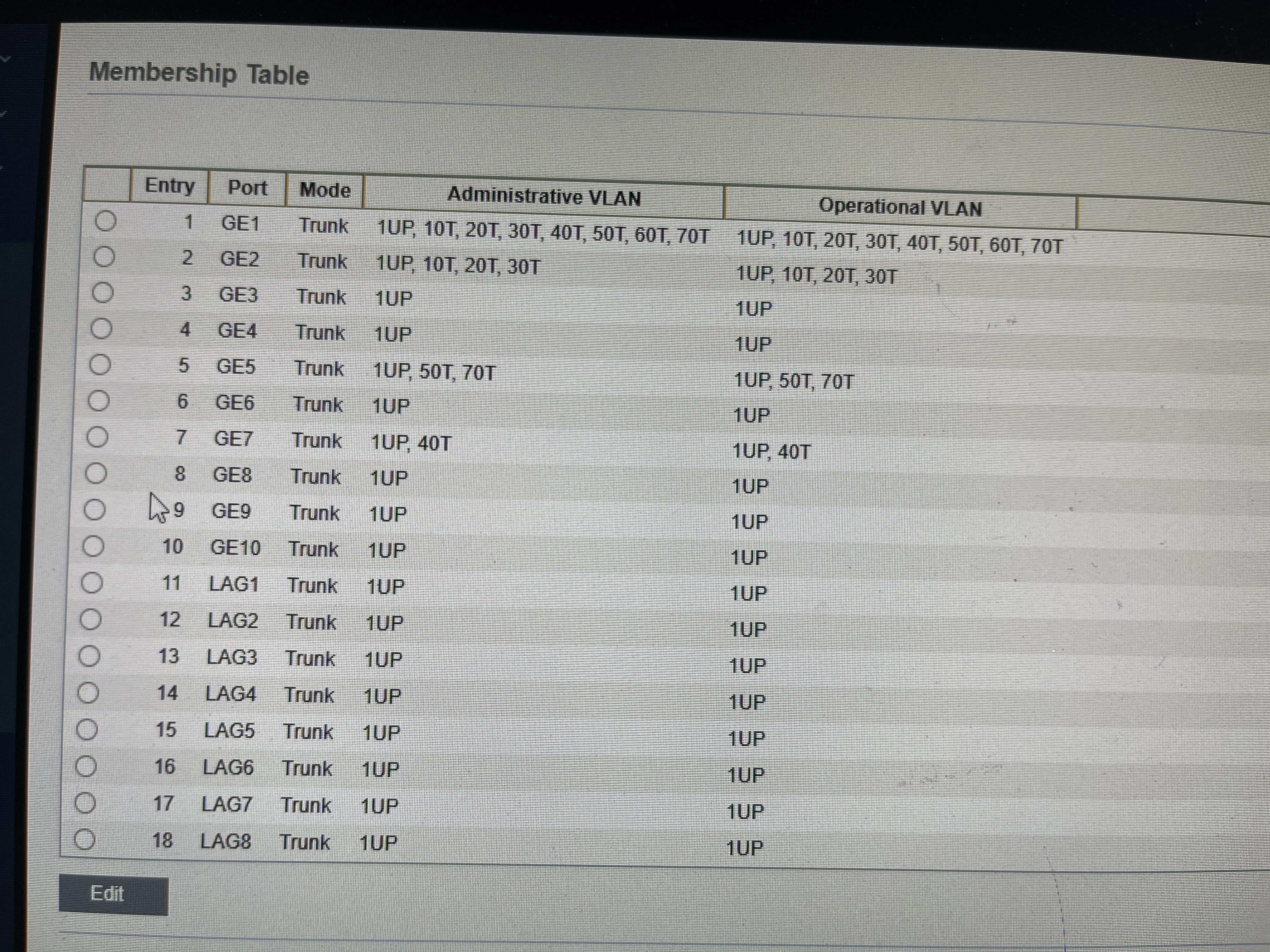
Six VLANs, each with its own subnet, DHCP pool, and mapped SSID:
| VLAN | Subnet | SSID | Purpose | Speed Limit |
|---|---|---|---|---|
| — | 192.168.20.0/24 | — | Management + wired devices | — |
| 10 | 192.168.10.0/24 | Office | Staff network (office + café) | None |
| 20 | 192.168.20.0/24 | Cafe_Staff | Staff café-only | None |
| 30 | 192.168.30.0/24 | Cafe_Guest | Café customer WiFi | 5 Mbps ↓ / 2 Mbps ↑ per user |
| 40 | 192.168.40.0/24 | Store | Store + warehouse staff | None |
| 50 | 192.168.50.0/24 | Store_Guest | Store customer WiFi | 5 Mbps ↓ / 2 Mbps ↑ per user |
| 70 | 192.168.70.0/24 | Store_IoT | IoT devices (hidden SSID) | None |
Design rationale:
- Guest networks (VLAN 30/50) get per-user bandwidth limits — prevents one device from consuming all upstream bandwidth
- IoT SSID is hidden — devices must be manually configured to connect, reducing attack surface
- Guest ↔ Staff isolation — a café customer on VLAN 30 cannot reach staff resources on VLAN 10 or management interfaces on VLAN 1
- Starlink IP conflict avoidance — gateway stays at 192.168.20.1 (factory default) instead of 192.168.1.1, because Starlink sometimes uses 192.168.1.x
Gateway Configuration
The ZW500 gateway is the brain of this deployment — it runs as router, DHCP server, and AC (Access Controller) simultaneously.
VLAN Sub-Interfaces (Not “Multi-Subnet”)
This gateway offers two features with confusingly similar names:
| Feature | What it actually does | DHCP? | Use for VLAN? |
|---|---|---|---|
| Multi-Subnet | Adds a secondary IP alias to the LAN interface | No | No |
| Add VLAN | Creates a proper 802.1Q sub-interface with VLAN ID | Yes | Yes |
We initially used “Multi-Subnet” and discovered it doesn’t create DHCP pools — devices on those subnets had no way to get an IP. The fix: delete those entries and use “Add VLAN” instead, which creates real sub-interfaces with VLAN tagging and independent DHCP servers.
Lesson learned: always verify that a feature does what the label suggests. Chinese gateway UIs can have misleading menu names.
Wireless Templates (AC Controller)
The gateway’s built-in AC manages all APs centrally through wireless templates. Each template defines which SSIDs an AP group broadcasts:
| Template | Assigned APs | SSIDs |
|---|---|---|
| Office (2F+3F) | 6 APs | Office |
| Café (1F) | 3 APs | Office + Cafe_Staff + Cafe_Guest |
| Store | 10 APs | Store + Store_Guest + Store_IoT (hidden) |
| Warehouse | 3 APs | Store |
Templates are created for both 2.4 GHz and 5.8 GHz bands (identical SSID configuration). Each SSID within a template specifies:
- SSID name and WPA2/WPA3 password
- VLAN ID (this is how the AP tags traffic to the correct network)
- Speed limit mode: Independent (per-user) for guest SSIDs, disabled for staff
- Hidden flag for IoT SSID
- Maximum user count per SSID
The café floor broadcasts three SSIDs because it serves three user groups: office staff passing through, café employees, and café customers. Upper floors only need one SSID — no guests up there.
WAN Configuration
Set to Dynamic IP (DHCP). The client’s Starlink router assigns an IP automatically when connected. No PPPoE credentials, no static IP — plug in and it works.
Physical Preparation: Label Everything
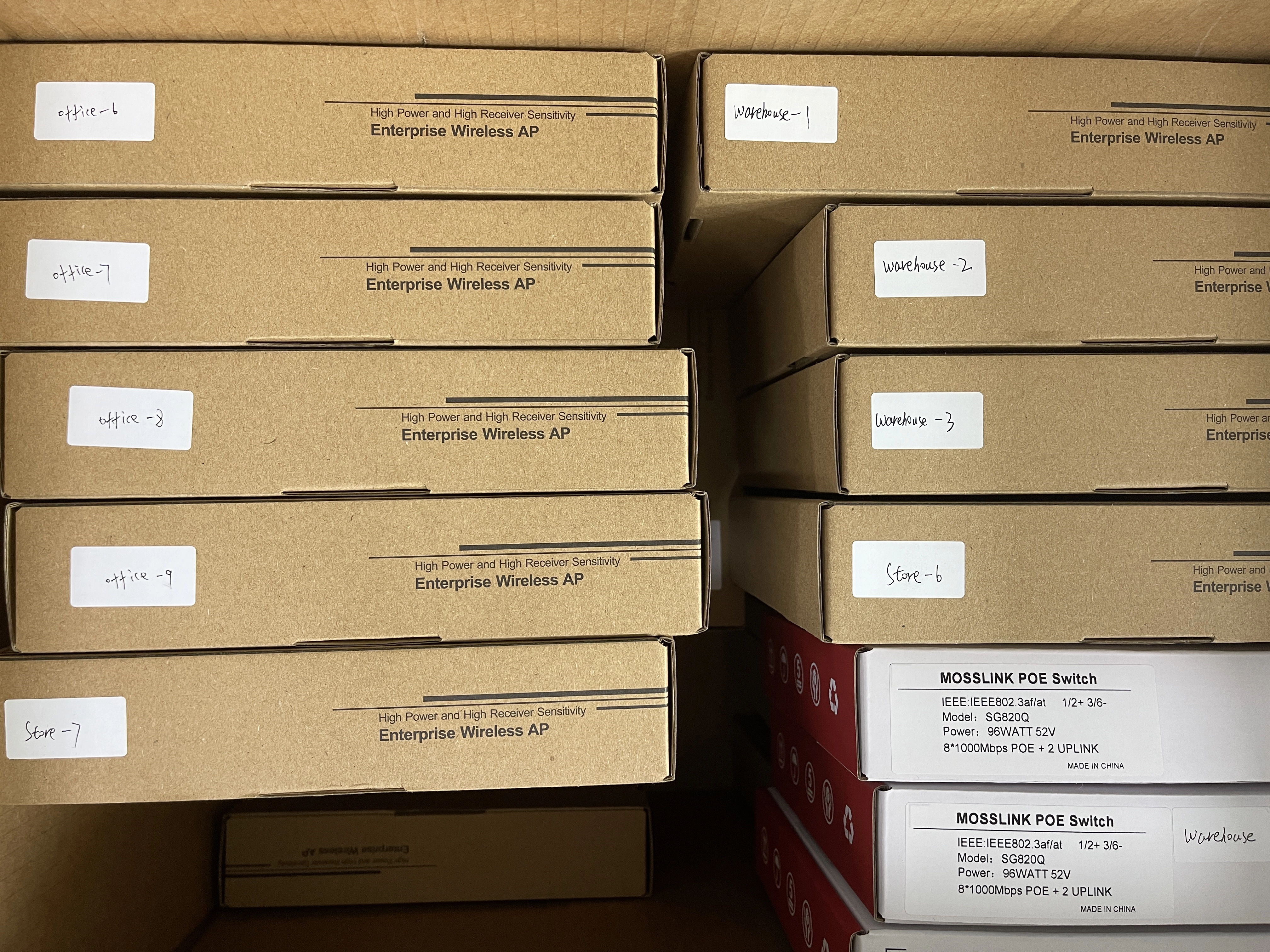
Before packing, every device gets a label:
- APs: “office-1” through “office-9”, “store-1” through “store-10”, “warehouse-1” through “warehouse-3”
- PoE switches: “Office”, “Store”, “Warehouse”, “CCTV”, “Tag/PA”
- Outdoor cable: marked with “Office ↔ Store” on both ends
We also prepare:
- A topology diagram showing every cable connection with port numbers
- An installation guide in English with step-by-step wiring instructions
- A WiFi reference card listing all SSIDs and passwords
What the Client Does On-Site
Zero configuration. The entire installation is physical:
- Place each switch at its labeled location
- Connect cables per the topology diagram (each port is specified)
- Plug Starlink into the gateway’s WAN1 port
- Mount APs on ceilings, connect each to the labeled PoE switch
- Power on: gateway first → core switch → PoE switches
- Wait 5 minutes — all WiFi networks come up automatically
The APs auto-register with the gateway’s AC controller over the network. Once online, they download their assigned wireless template and start broadcasting the correct SSIDs with the correct VLAN tags. The client never touches a configuration page.
Five Lessons from This Deployment
1. “Multi-Subnet” ≠ “VLAN” on Chinese Gateways
We lost 30 minutes discovering that the “multi-subnet” feature only adds IP aliases without DHCP. Always test the actual behavior — don’t trust feature names in gateway UIs.
2. Unmanaged Switches Are Fine for WiFi VLAN
Don’t over-spec hardware. APs do the VLAN tagging; switches just forward frames. Save the budget for more APs or better upstream bandwidth instead of managed switches at every hop.
3. Avoid 192.168.1.x Behind Consumer Routers
When deploying behind Starlink, home routers, or ISP CPEs, stay away from 192.168.0.x and 192.168.1.x — these are the most commonly used defaults. An IP conflict between your gateway and the upstream router kills the entire network, and remote debugging with a non-technical client is painful.
4. Label Everything Before It Leaves Your Facility
The client should never guess which cable goes where. A well-labeled kit with a clear diagram eliminates 90% of support calls. Spend 30 minutes labeling — save hours of remote troubleshooting.
5. Pre-Configure WAN as Dynamic IP
Even if the client hasn’t set up their internet connection yet, setting WAN to DHCP means it works the moment they plug in any router upstream. No coordination needed, no remote configuration session required.
Why Pre-Configuration Matters for B2B
For OEM and ODM customers deploying equipment overseas, pre-configuration is a critical value-add:
- Reduces on-site time from days to hours — no network engineer needed
- Eliminates misconfiguration — the most common cause of post-sale support tickets
- Builds trust — the customer’s first experience is “plug in and it works”
- Enables remote markets — qualified network engineers may not be locally available
This is especially valuable for emerging markets in Central Asia, Africa, and Southeast Asia, where satellite internet (Starlink, OneWeb) is becoming the primary upstream connection and customers need turn-key WiFi solutions that work out of the box.
What This Deployment Covers
| Metric | Value |
|---|---|
| Total coverage area | ~4,000 sqm across 3 buildings |
| WiFi networks (SSIDs) | 6 (3 staff + 2 guest + 1 IoT) |
| Access points | 23 × XD3001K (WiFi 6, AX3000, ceiling-mount) |
| PoE switches | 5 (dedicated per zone) |
| VLANs | 6 (full traffic isolation) |
| Client configuration required | None |
| Time from unboxing to WiFi | ~2 hours (physical install only) |
At MossLink, we don’t just ship hardware — we ship complete, tested, ready-to-deploy network solutions. Whether you’re deploying 5 APs or 500, we pre-configure your entire network at our Shenzhen facility before shipping.
Need a pre-configured network kit for your project? Get a Quote or talk to us on WhatsApp.
Featured in this guide

Frequently Asked Questions
Practical answers for planning a similar network.
Can WiFi VLAN separation work with unmanaged PoE switches?
Why not use 192.168.1.x for the gateway when deploying behind Starlink?
How many SSIDs can one access point broadcast without performance loss?
What does the client need to do on-site after receiving pre-configured equipment?
Can I pre-configure equipment for a different country's network environment?
Deploy with confidence
See how MossLink builds Campus Wi-Fi Network Solution & Access Points end-to-end
Network architecture, products used, and real-world results in one place.
Tags
Share