How to Manage Access Points Remotely: A Complete Guide to Cloud-Based AP Management

You get a call at 9 PM: guests at a hotel two cities away can’t connect to Wi-Fi. The SSID password was changed, nobody knows by whom, and your only option is a two-hour drive just to fix what should have been a ten-second remote change.
Cloud-based AP management eliminates exactly this problem. A centralized platform gives you a single dashboard to monitor device health, push configuration changes, upgrade firmware, and reboot any AP — from anywhere, without setting foot on site.
This guide is for IT administrators managing distributed networks, MSPs handling multiple client sites, and hospitality or campus operators running Wi-Fi across dozens of locations. We walk through the CloudNetlot Cloud Platform — available at iot.yowifi.net for domestic users and www.cloudnetlot.com internationally — from initial device binding through sub-account delegation.
What Is Remote AP Management and Why Does It Matter?
Remote AP management means controlling and monitoring your access points through a cloud platform instead of logging into each device individually over a local network. When an issue occurs, you don’t send a technician — you open a browser tab.
The operational math is straightforward. A 30-AP hotel deployment spread across three properties used to require three truck rolls for a firmware update cycle. With cloud management, that becomes one scheduled batch job. The table below compares the three common approaches:
| Approach | Upfront Cost | Remote Access | Scalability | Resilience if WAN Fails |
|---|---|---|---|---|
| Cloud (CloudNetlot) | Low — no extra hardware | Full, from any browser | High — add devices, no new servers | Medium — local traffic unaffected |
| On-prem controller | Medium — server or appliance | With VPN setup | Medium — hardware limits apply | High — local control continues |
| Per-device management | None | One device at a time | Poor — grows linearly with AP count | High — nothing to fail |
For distributed deployments — multiple hotel properties, a campus with several buildings, or an MSP with dozens of client accounts — the cloud approach is the only one that doesn’t become a maintenance burden at scale.
What You Need to Get Started
Three prerequisites: cloud-compatible hardware, a platform account, and broadband internet at each AP site.
Compatible hardware is the foundation. Every CloudNetlot-supported device has cloud management built into the firmware. The table below summarises the five products in the lineup and where each one fits:
| Model | Type | Wi-Fi Standard | Key Spec | Typical Deployment |
|---|---|---|---|---|
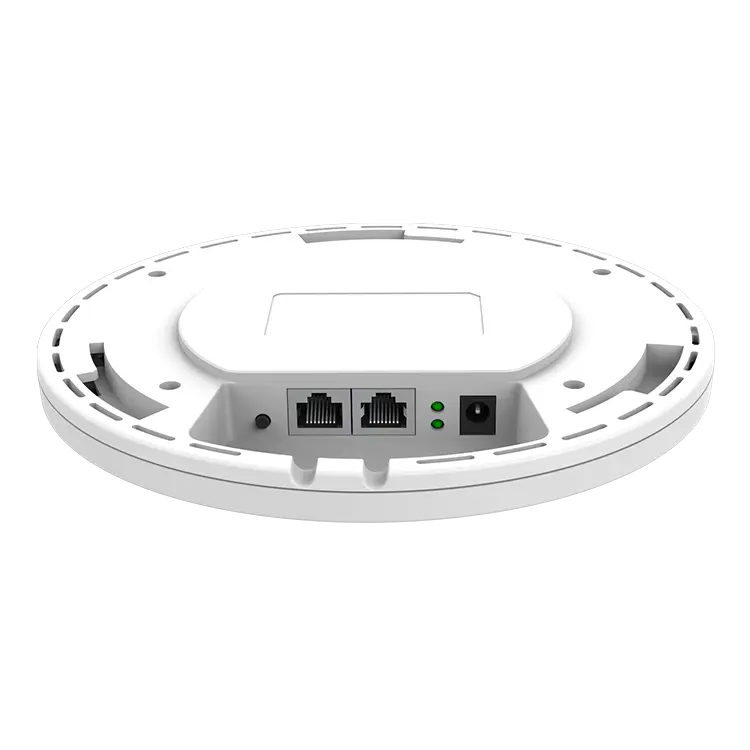
| AP240 | Indoor Ceiling AP | Wi-Fi 5 (802.11ac) | AC1200, 64 clients, PoE+ | Hotel rooms, office floors, campus halls |
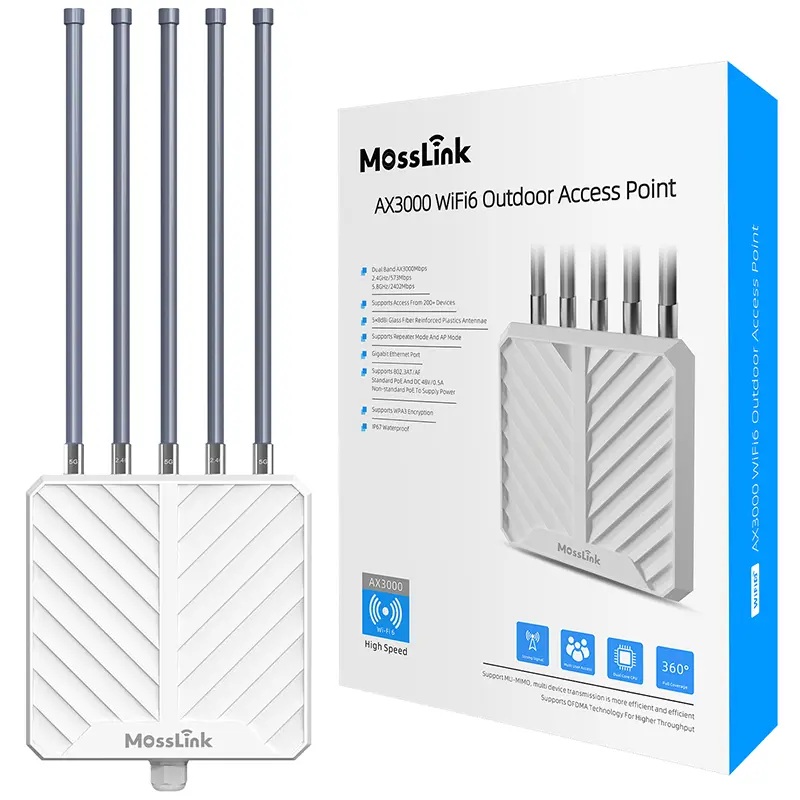
| APH6-AX3000 | Outdoor AP | Wi-Fi 6 (802.11ax) | AX3000, IP67, SFP port | Campus exteriors, building perimeters |
| YA796 | Outdoor AP | Wi-Fi 5 (802.11ac) | AC1200, Timed WiFi | Schools, corporate offices |
| BE3600 | Wi-Fi 7 Router | Wi-Fi 7 (802.11be) | BE3600, Gigabit WAN/LAN | Site gateway, managed uplink |
| WB5acDish | Wireless Bridge | Wi-Fi 5 (802.11ac) | 867 Mbps, 5 km PtP | Long-range backhaul between buildings |
Platform access is free. Register at www.cloudnetlot.com, create a project, and you’re ready to bind devices.
Site connectivity can be any standard broadband connection — the AP only needs to reach the cloud management server. Client data traffic is handled locally and continues uninterrupted even when the management link is temporarily down.
Step-by-Step: How to Bind Your AP to the Cloud Platform
Binding a new AP to CloudNetlot takes under five minutes. Here is the exact workflow:
Step 1 — Enable cloud service on the device.
Log into the AP’s local web UI. Go to System > Cloud Management, toggle cloud service to Enabled, and set the server address to cloudnetlot.com (international) or the domestic endpoint.
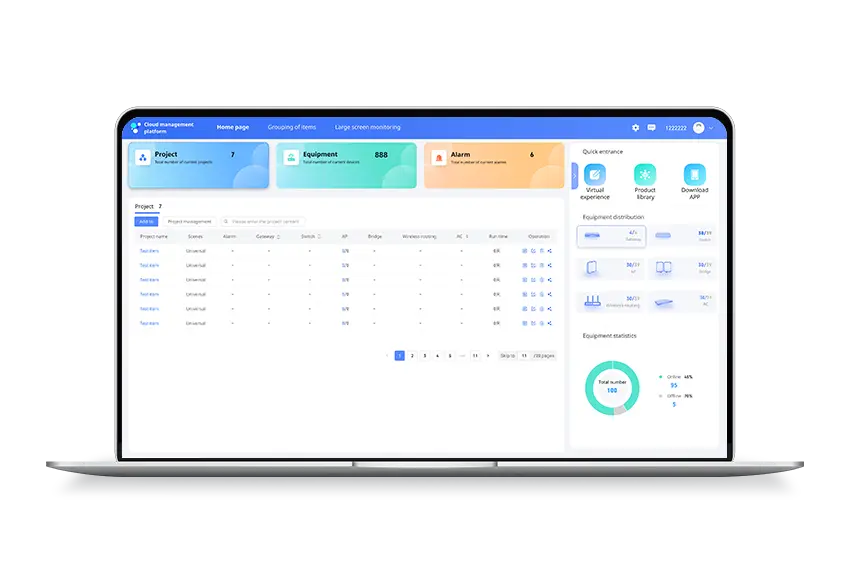
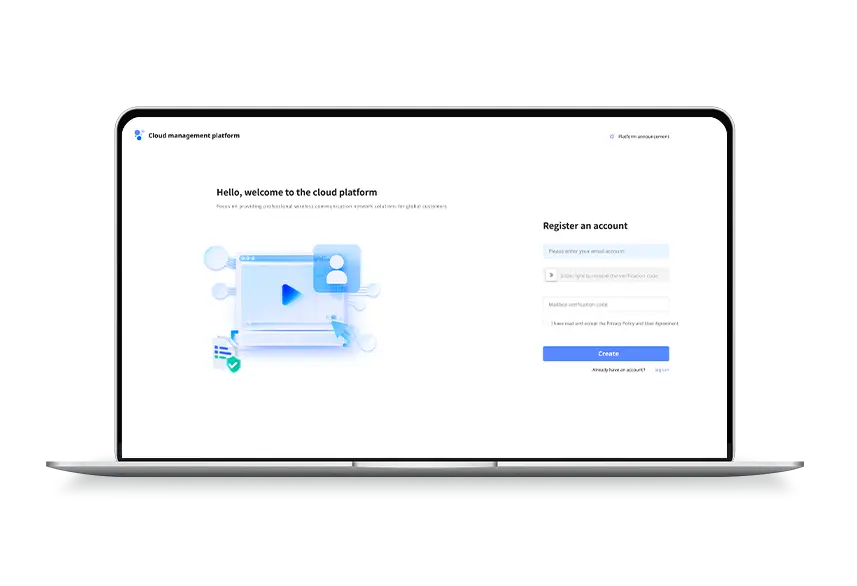
Step 2 — Log into the platform. Sign in at www.cloudnetlot.com. If this is a new deployment, create a Project first — projects are the logical containers for all devices at one site or one client account.
Step 3 — Bind via MAC address. Click Add Device in the project dashboard, then enter the AP’s MAC address (printed on the device label, or visible at System > Device Info in the local UI). The platform confirms the connection within 30 seconds of the AP coming online.
Step 4 — Label the device. Add a descriptive name — “Floor 3 East Wing” or “Lobby AP-02” — so devices stay easy to identify in a 40-device fleet.
Step 5 — Batch bind for larger rollouts. CloudNetlot supports batch binding of up to 50 devices via CSV import. Upload a file with MAC addresses and labels, select the target project, and all devices bind simultaneously — turning a 30-device site onboarding from hours into minutes.
Key Remote Management Features
Once devices are bound, the platform gives you seven operational tools. The table below summarises them before we dig into the detail:
| Feature | What It Does | Max Scale | Typical Use |
|---|---|---|---|
| Dashboard | Real-time status, clients, CPU, memory | All bound devices | Daily monitoring |
| WiFi Config | SSID, password, security mode, Timed WiFi | Group or individual | SSID changes, schedule policies |
| Firmware Upgrade | OTA update, individual or batch | 20 devices per job | Monthly maintenance |
| Remote Reboot | Immediate or scheduled restart | Per-device | Troubleshooting, weekly maintenance |
| Alerts | CPU, memory, DHCP conflict, disconnect | Per-project | Proactive incident response |
| Config Log | Timestamped audit trail | Full account history | Multi-tech teams, compliance |
| Remote Web UI | One-click access to device UI | Per-device | Advanced diagnostics |
Dashboard & Real-Time Monitoring
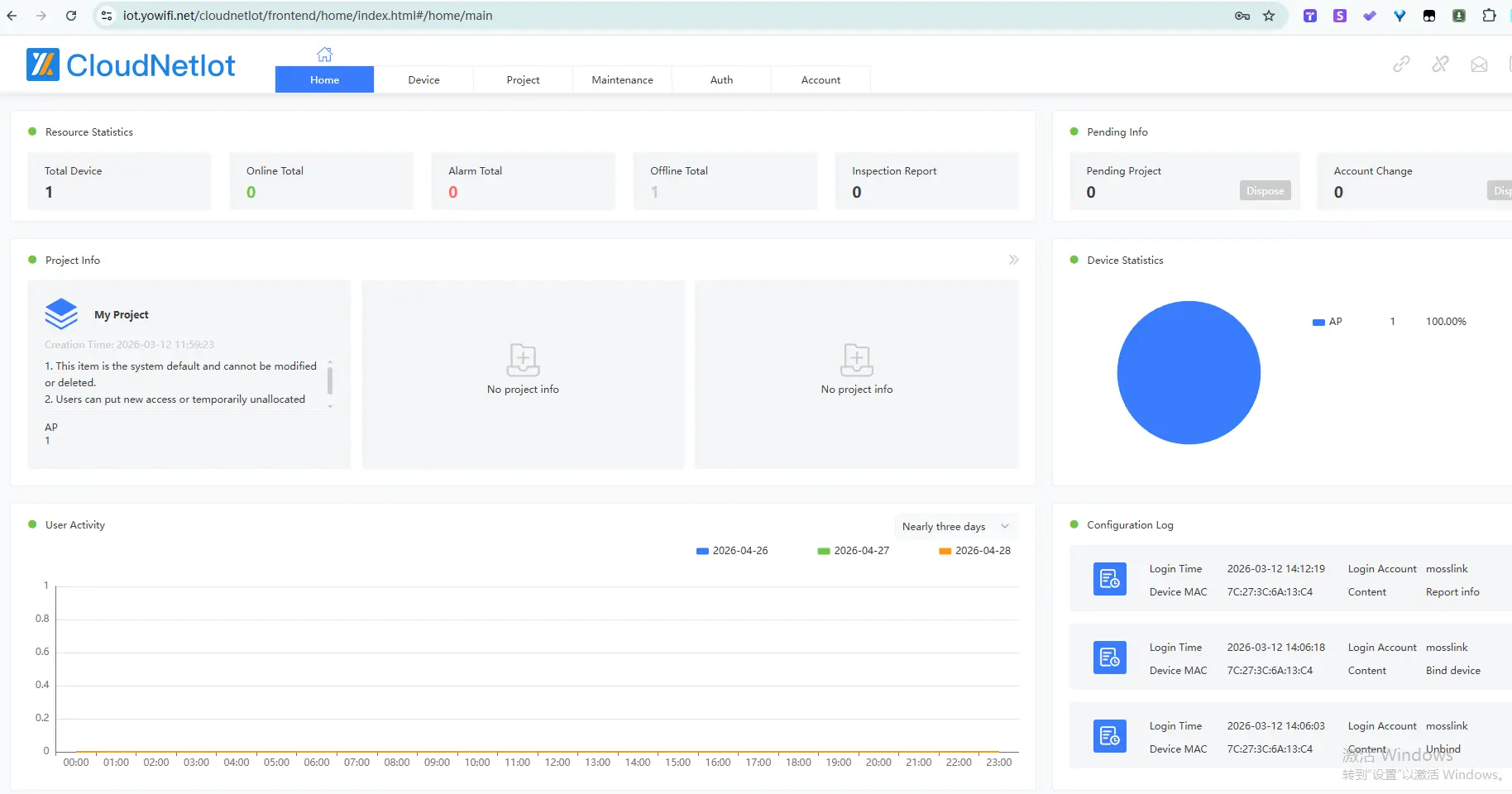
The CloudNetlot dashboard gives you a live feed for every bound device: online/offline status, connected client count, CPU utilisation, memory usage, signal strength per radio, and uptime.
The Config Log is the feature that matters most in multi-technician environments. Every configuration change is recorded with a timestamp and the sub-account that made it — so when something breaks at 11 PM, you trace exactly what changed and who did it. User Activity reports show client connection patterns over time, helping you identify an overloaded AP before users start calling.
WiFi Configuration & Scheduling
Change SSID names, passwords, security mode (WPA2/WPA3), and radio band settings for any AP — or a group of APs — without touching the device locally.
The Timed WiFi feature is purpose-built for environments with defined operating hours. Set each SSID to enable and disable on a schedule: cut off guest Wi-Fi after 10 PM, activate student SSIDs only during class hours, turn off unused networks on weekends to reduce RF noise. The YA796 — a Wi-Fi 5 AC1200 outdoor AP with native Timed WiFi support — is a strong fit for schools and corporate office outdoor zones where access policies need to be enforced on a schedule. For long-range outdoor backhaul, the WB5acDish directional bridge also supports platform-managed scheduling, letting you apply consistent policy across mixed indoor/outdoor deployments from a single project.
Firmware Upgrades
Outdated firmware is one of the most common causes of AP instability and security exposure. CloudNetlot keeps the rollout effort minimal.
Run an upgrade on a single device or launch a batch upgrade across up to 20 APs at once. The upgrade log records the firmware version each device was on before and after — confirming success or flagging any device that failed to update. Scheduled upgrades are the right approach for production: set a 2:00–4:00 AM window, queue the job, and the platform handles sequencing with no manual oversight required.
Remote Reboot
When an AP stops responding, the last thing you want is a truck roll just to cycle power.
CloudNetlot provides immediate remote reboot from the device panel — click, confirm, done in seconds. Scheduled reboots let you set a weekly maintenance window for all APs in a project, clearing accumulated memory state during low-traffic hours without any user-facing disruption.
Alerts & Notifications
Proactive alerting separates a managed network from one that only gets attention after a user complaint.
CloudNetlot notifies you when CPU crosses a threshold, memory is running high, a device disconnects repeatedly, or a DHCP conflict is detected. Alerts are delivered via email or WeChat, configurable per project. For MSPs, routing alerts to a shared inbox that feeds the ticketing system ensures nothing slips through over a weekend.
Remote Device Access
For diagnostics that need direct device interaction, CloudNetlot provides one-click access to the device’s local web UI through the platform — no VPN, no static IP, no SSH tunnel required.
This single feature eliminates an entire class of site visits. Checking radio logs, inspecting the DHCP lease table, or reviewing client association history takes minutes remotely instead of hours of travel.
Managing Multiple Sites with Projects
The Project is CloudNetlot’s top-level organisational unit — each project maps to one logical deployment: a hotel property, a campus building, or one client account.
Within a project you group devices, apply bulk configuration changes, and run batch operations on the entire fleet. Project transfer between accounts lets you hand off a complete site to a new administrator without rebinding any devices — useful when a client switches IT provider or when an MSP transitions a contract.
The BE3600 Wi-Fi 7 router is the typical gateway device in project-based deployments. Pairing a BE3600 at each site’s internet uplink with a fleet of indoor or outdoor APs gives you a complete end-to-end network — gateway plus coverage layer — all managed under one project from the same dashboard.

For MSPs, the project model maps cleanly to a per-client billing structure. Each client is a project, and each project has its own sub-account access level so client-side staff can view status without touching configuration.
Security & Authentication
Remote management is only useful if the network underneath it is secure. CloudNetlot provides a complete captive portal and access control suite, configurable entirely from the cloud.
Captive portal modes include one-click access (no password), SMS verification, and member-based authentication — selectable per SSID. Roaming support means users do not re-authenticate when moving between APs, which matters in hotel corridors, campus walkways, and outdoor venues where seamless movement is expected.
For outdoor and perimeter coverage, the APH6-AX3000 — a Wi-Fi 6 AX3000 outdoor AP with an IP67-rated enclosure and a dedicated SFP port for fiber backhaul — is the right device to enforce captive portal policy across exterior zones. Its cloud integration keeps authentication consistent with every other AP in the project, regardless of indoor or outdoor placement.
Additional controls include URL filtering (by category or specific domain), IP filtering, MAC address filtering, and per-client traffic rate limiting (upload/download caps). All are configurable from the dashboard with no local connection required.
Sub-Account Management & Delegation
For any deployment with more than one person touching the network, CloudNetlot’s sub-account system provides the access structure you need.
Create sub-accounts with Admin (full configuration rights) or Guest (read-only monitoring) permissions. Guest access is the right level for client-side staff who need a portal login to check uptime without risking configuration changes.
For temporary access — a contractor doing a site audit or a vendor diagnosing a specific fault — generate a time-limited sharing link with an expiry date. Access is granted for the window you set and revokes automatically when the link expires. Your main credentials never leave your team.
Best Practices for Remote AP Management
- Name everything descriptively from day one. “Project 47” and “Device 12” are meaningless in a 2 AM alert. Use “Hilton Riverside — Lobby AP-02” from the moment you bind.
- Set up alerts before you need them. Configure CPU, memory, and disconnect thresholds during deployment, not after the first incident forces you to.
- Schedule firmware upgrades during off-peak windows. Use the upgrade log to verify every device completed the job. Any that didn’t appear in the log need a manual follow-up.
- Use configuration templates for multi-site consistency. When SSID, VLAN, and radio settings are templated, new sites launch with the right defaults — no per-site checklist required.
- Review config logs weekly in multi-tech teams. Catching a misconfiguration in the audit trail prevents it from becoming a user-facing problem.
Conclusion
Cloud-based AP management turns a distributed Wi-Fi fleet from a reactive maintenance burden into a controlled, predictable operation. With CloudNetlot Cloud Platform you get real-time visibility, remote configuration, batch firmware upgrades, proactive alerting, and one-click device access — across every AP on every site — from one browser tab.
Every device in the CloudNetlot lineup supports full platform integration: the AP240 for indoor ceiling deployments, the APH6-AX3000 for high-density outdoor coverage, the YA796 for timed-access deployments at schools and offices, the BE3600 Wi-Fi 7 router as a managed site gateway, and the WB5acDish for long-range backhaul between buildings.
Ready to take control of your network remotely? Log in to CloudNetlot Cloud Platform and bind your first device in under five minutes. Questions about deployment or OEM volume pricing? Contact our team.
Featured in this guide
Frequently Asked Questions
Practical answers for planning a similar network.
Can I manage access points remotely without a hardware controller?
How many access points can I manage from one CloudNetlot account?
Can I push firmware updates to access points remotely?
What happens to connected users if the cloud link drops?
Is cloud-based AP management secure?
Deploy with confidence
See how MossLink builds Factory Wi-Fi Solutions & Industrial Wireless Networks end-to-end
Network architecture, products used, and real-world results in one place.
Tags
Share